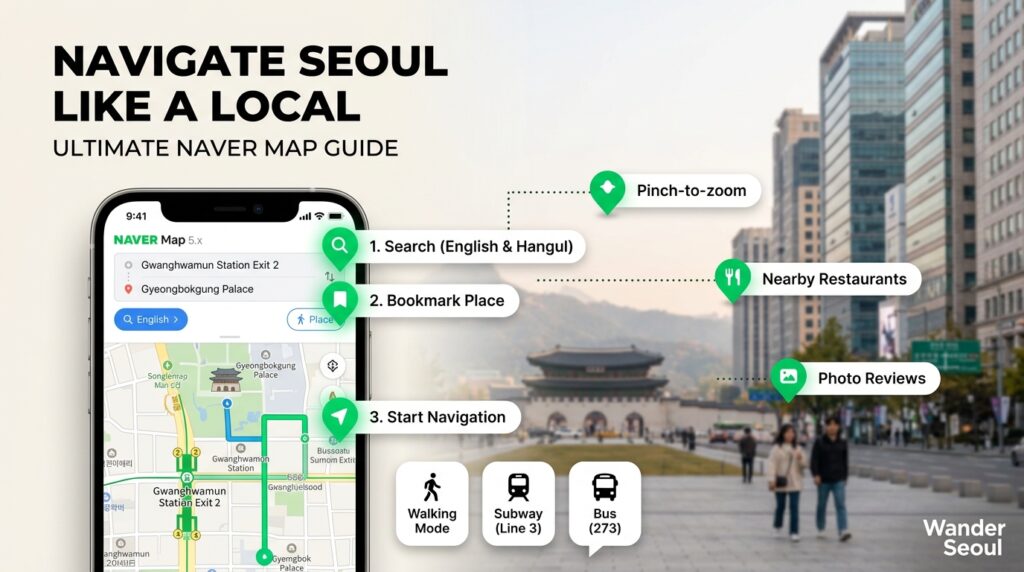
If you’re traveling to South Korea for the first time, there’s one app you should download before you arrive: Naver Map.
Google Maps works differently in South Korea than it does in many other countries, and it isn’t the most reliable option for navigating around Seoul, Busan, Jeju, or other Korean cities.
Naver Map is the app I use to find restaurants, bars, subway stations, cafes, attractions, hiking trails, and pretty much anywhere else I want to go in Korea.
The good news? You don’t need to speak Korean to use Naver Map.
Once you understand a few basic features, it becomes incredibly useful for getting around Korea.
In this guide, I’ll show you how to use Naver Map as a foreign visitor, including how to change the app to English, search for places, save locations, get directions, use public transportation, and build your own travel map.
TL;DR
Looking for something specific? Jump straight to the section you need:
- Why Use Naver Map in Korea?
- How to Download Naver Map
- How to Change Naver Map to English
- How to Search for Places
- How to Get Directions
- How to Save a Place
- How to Find Restaurants
- How to Find Subway Exits
- How to Use Naver Map for Buses
- Naver Map vs. Google Maps
- Tips for First-Time Visitors
- Frequently Asked Questions
Why Should You Use Naver Map in Korea?
Naver Map is one of the most useful navigation apps for traveling around South Korea.
While Google Maps is the default navigation app for many international travelers, mapping and navigation work differently in Korea.
Naver Map is deeply integrated into the Korean local ecosystem, which means you’ll often find more useful information about individual businesses, restaurants, public transportation, and local attractions.
It’s especially useful when you’re looking for places that aren’t obvious tourist attractions.
Want to find a small Korean barbecue restaurant in Seongsu? Naver Map.
Trying to figure out which subway exit to use in Hongdae? Naver Map.
Looking for a cafe near Gwangalli Beach? Naver Map.
Trying to navigate a hiking trail on Achasan? Naver Map.
Once you get comfortable with it, you’ll probably find yourself opening Naver Map several times a day.
How to Download Naver Map
Naver Map is available for both iPhone and Android. You can click the links to go directly to the relevant app store.
Search for Naver Map in your phone’s app store and download the official application before your trip.
I’d recommend setting it up before you arrive in Korea rather than waiting until you’re standing outside Seoul Station trying to figure out where you’re going.
You can also create your Naver account ahead of time if you want to start saving places for your trip.
How to Change Naver Map to English
If you open Naver Map for the first time and everything appears to be in Korean, don’t worry.
You can change the app’s language to English through the settings.
Open Naver Map, press the small human face in the search bar…

Then press the machine cog icon at the top of the screen this will open the app’s Settings…

Look for the Language option and select English.

The exact appearance of the settings menu can vary slightly depending on your device and version of the app, but the language setting is available directly within Naver Map.
I’d recommend changing this before you start planning your trip.
Having the interface in English makes it much easier to understand navigation options, transportation information, saved places, and other features.
You May Still See Korean
Changing the app to English doesn’t mean that every piece of information will suddenly be translated.
You may still encounter:
- Korean business names
- Korean addresses
- Korean restaurant menus
- Korean reviews
- Korean place names
This is normal.
For popular tourist destinations, you’ll generally have no problem searching in English.
For smaller local businesses, however, searching for the Korean name can sometimes produce better results.
This is where having a translation app like Papago can be really helpful. Papago is particularly useful for translating Korean text, signs, menus, and other information you encounter while traveling. I find it more useful for Korean-specific translations than relying on Google Translate alone.
Papago Download on the Apple App Store and Google Play App Store.
If you come across something in Naver Map that you don’t understand, you can copy the Korean text into Papago and quickly translate it into English.
Pro tip: If you’re traveling around Korea, I’d recommend having both Naver Map and Papago on your phone. Naver Map handles navigation and finding places, while Papago can help you understand the Korean information you encounter along the way.
How to Search for Places on Naver Map
Searching for a location is pretty straightforward.
Open Naver Map and enter the name of the place you’re looking for in the search bar.
You can search in English for many popular destinations and businesses.
For example:
- Gwangalli Beach
- Gyeongbokgung Palace
- Myeongdong
- Seoul Station
- Lotte World
- Hongdae
- Busan
Naver Map will then show you matching locations on the map.
Search in Korean When English Doesn’t Work
This is one of the most useful tricks for foreigners.
Not every Korean business has an English name that Naver Map recognizes.
If you can’t find a restaurant, bar, cafe, or other business by searching in English, try searching for its Korean name instead.
This is especially helpful for smaller local businesses.
If you’re reading one of our neighborhood guides on Wander Seoul and see a Korean name listed alongside a business, you can copy and paste that Korean name directly into Naver Map.
What if you don’t know what the Korean name means? This is where a translation app like Papago can be really useful. You can copy Korean text from Naver Map, a website, sign, menu, or anywhere else and translate it into English.
Pro tip: Keep the Korean name of important places saved somewhere on your phone. Having the Korean name makes it much easier to find smaller local businesses and show the correct destination to a taxi driver.
How to Get Directions on Naver Map
Once you’ve found your destination, tap the Directions button.
Naver Map will give you several transportation options depending on your location.
Walking
The walking option is great for exploring Seoul’s neighborhoods.
It will show you the walking route and estimated travel time.
Keep in mind that Seoul can have lots of hills, stairs, pedestrian alleys, and complicated intersections.
A route that looks short on the map isn’t always as easy as it looks.
Public Transportation
This is one of the most useful features of Naver Map.
Select the public transportation option and Naver Map will show you available subway and bus routes.
You’ll generally see:
- Subway lines
- Bus routes
- Transfers
- Estimated travel time
- Walking time
- Departure information
- Which subway station exits to use
For visitors, this can be much easier than trying to understand Seoul’s subway system on your own.
Driving
Naver Map also provides driving directions, although most visitors won’t need this if they’re staying in Seoul.
If you’re renting a car in Jeju or exploring more rural areas of Korea, however, Naver Map becomes much more useful.
How to Save Places and Create Lists on Naver Map
One of my favorite Naver Map features is the ability to save places into lists.
When you find a restaurant, cafe, attraction, hotel, bar, or other location you want to visit, look for the bookmark or save option. You can then add the place to one of your lists.
This allows you to build your own personal travel map.
For example, if you’re planning a trip to Seoul, you might save:
- Restaurants you want to try
- Bars and nightlife
- Cafes
- Palaces
- Markets
- Shopping areas
- Hiking trails
- Hotels
- Day-trip destinations
Instead of trying to remember the name of every place you’ve seen online, you can simply save it to Naver Map.
Organize Your Saved Places
If you’re saving dozens of places, things can get messy quickly.
That’s where lists are useful.
You can create lists to organize your saved places however you want. For example:
Seoul Trip
- Seoul restaurants
- Seoul nightlife
- Cafes
- Shopping
- Attractions
- Day trips
You could also organize places by neighborhood:
- Hongdae
- Myeongdong
- Gangnam
- Seongsu
- Itaewon
- Gwangalli
- Haeundae
This is particularly useful if you’re following a neighborhood-based itinerary.
For example, if you’re spending an evening in Gwangalli, you could save your favorite restaurants, bars, cafes, and attractions to a Gwangalli list. Then, when you’re in the neighborhood, you can open that list and quickly see the places you wanted to visit.
Pro tip: I recommend creating a few simple lists before your trip rather than trying to organize every place perfectly. You can always add places as you discover them.
How to Use Naver Map With Wander Seoul Guides
This is one of the easiest ways to plan your trip.
Whenever you read a Wander Seoul guide, keep Naver Map open on your phone or computer.
Find the places that interest you and save them. For most businesses I link, I try to link the location on Naver Maps or their Instagram which often has their location on Naver Map.
For example, if you’re reading our Gwangalli nightlife guide, you might save several bars and restaurants that you want to visit.
Then, once you’re actually in Gwangalli, you can open your saved locations and see what’s nearby.
This works particularly well in Seoul because neighborhoods can have dozens of interesting places packed into a relatively small area.
You don’t necessarily need to plan every minute of your trip.
Save a few places you like and explore from there.
How to Find Restaurants on Naver Map
Naver Map is also incredibly useful for finding restaurants.
Search for a type of food or a specific restaurant and you’ll see businesses displayed around your current location or search area.
You can then look at information such as:
- Photos
- Address
- Opening hours
- Menu information
- Reviews
- Phone number
- Location
- Popular dishes
For restaurants with Korean-only names, this can be particularly helpful.
Don’t Just Look at the Rating
One mistake I see travelers make is focusing entirely on the rating.
A restaurant with a slightly lower rating may actually be a better fit for you than one with a higher rating.
Look through the photos, menu, location, and recent reviews.
And remember that Korean reviews and foreign visitor reviews can sometimes have very different perspectives.
Pro Tip: Many cafes, bars, and restaurants have full Naver blog posts written about them which you can access via Naver Map. You can translate this using Papago and learn all about that business.
How to Use Naver Map to Find Subway Exits
Seoul’s subway system is excellent, but some stations are enormous.
Getting off at the wrong exit can turn a five-minute walk into a 15-minute walk.
Naver Map can help you determine which exit you should use.
When planning your route, pay attention to the recommended subway exit.
This is particularly helpful around major stations such as:
- Gangnam
- Seoul Station
- Hongdae
- Jamsil
- Dongdaemun
- Express Bus Terminal
Pro Tip: Pay attention to the subway car number Naver Map recommends. It can tell you which car to board so you’re closest to your desired exit when you arrive, saving you a lot of unnecessary walking.
How to Use Naver Map for Buses
Seoul’s bus system can look intimidating at first, but Naver Map makes it much easier.
Enter your destination and select public transportation.
The app will show you which bus to take, where to get on, and where to get off.
If you’re unfamiliar with Korean buses, pay attention to the bus number and stop name.
It’s also helpful to keep Naver Map open while you’re traveling so you can monitor your route.
Does Naver Map Work in English?
Yes. Naver Map has an English-language setting, so foreign visitors don’t have to navigate the entire app in Korean.
However, changing the interface to English doesn’t necessarily translate every piece of information in the app.
You may still see Korean names for businesses and locations, Korean reviews, menus, and other locally provided information.
For that reason, knowing how to copy and paste Korean names into Naver Map is still a useful trick.
Does Naver Map Work Offline?
You shouldn’t plan on using Naver Map as if it were a completely offline navigation app.
Instead, make sure you have reliable mobile data or Wi-Fi while traveling.
Luckily, getting internet access in Korea is relatively easy.
You can use:
- A Korean SIM card
- An eSIM
- Pocket Wi-Fi
- International roaming
For most travelers, an eSIM is probably the simplest option. My personal favorite is MobiMatter, I find them to be the most affordable and work well in Korea.
Naver Map vs. Google Maps in Korea
So which one should you use?
For navigating around South Korea, I recommend having Naver Map installed even if you normally use Google Maps at home.
Google Maps can still be useful for discovering places, reading international reviews, or planning your trip.
But Naver Map is particularly useful for:
- Public transportation
- Walking directions
- Local businesses
- Restaurants
- Subway exits
- Bus routes
- Korean addresses
- Smaller local destinations
You don’t necessarily have to delete Google Maps.
Just think of Naver Map as your primary navigation tool while you’re actually traveling around Korea.
Naver Map Tips for First-Time Visitors
Here are a few things I’ve learned from using Naver Map in Korea.
1. Save places before you arrive
Don’t wait until you’re already in Korea.
If you know you want to visit somewhere, save it ahead of time.
2. Save your hotel
This sounds obvious, but do it.
Save your hotel in Naver Map before your trip so you can quickly get directions back after a long day.
3. Keep Korean names handy
If you can’t find a business in English, try the Korean name.
4. Check opening hours
Don’t assume a restaurant or cafe is open just because Google says it is.
Check Naver Map before making the trip.
5. Look at the map before leaving the subway
Seoul’s subway stations can be huge.
Knowing which exit to use can save you a lot of unnecessary walking.
6. Don’t be afraid to explore
One of the best things about Naver Map is that it makes spontaneous exploration easier.
If you’re finished sightseeing in one neighborhood, open the map and see what you’ve saved nearby.
You might find your next favorite restaurant or bar that way.
Frequently Asked Questions
Is Naver Map free?
Yes. Naver Map is free to download and use.
Can foreigners use Naver Map?
Absolutely. You don’t need to be a Korean citizen or have a Korean phone number just to use the app’s basic navigation features.
Can I change Naver Map to English?
Yes. You can change the app’s language through the settings. However, some business information, reviews, menus, and Korean place names may still appear in Korean.
Is Naver Map better than Google Maps in Korea?
The two apps have different strengths. Naver Map is particularly useful for local navigation, public transportation, Korean businesses, and smaller destinations in South Korea.
Do I need Naver Map in Seoul?
You can visit Seoul without it, but having Naver Map makes getting around significantly easier, particularly if you’re using public transportation or visiting local neighborhoods.
Can Naver Map find restaurants?
Yes. You can search for restaurants by name, location, and type of food, and view useful information such as photos, hours, menus, and reviews.
Can I use Naver Map outside Seoul?
Yes. Naver Map works throughout South Korea, including destinations such as Busan, Jeju, Gyeongju, and Incheon.
Final Thoughts
Naver Map might look a little intimidating when you first open it, especially if you’re used to relying on Google Maps.
Give it a little time.
Once you understand how to search for places, save locations, organize your bookmarks, and use public transportation directions, it becomes one of the most useful apps you can have while traveling around South Korea.
And if you’re planning your trip using Wander Seoul, I’d recommend saving places as you go.
Find a restaurant you like? Save it.
See a bar that looks interesting? Save it.
Find a cafe near your hotel? Save it.
By the time you arrive in Korea, you’ll have your own personalized map ready to go.
Start Planning Your Korea Trip
Explore Wander Seoul’s neighborhood guides to find restaurants, bars, cafes, attractions, and things to do throughout Seoul.
Looking for somewhere to go after dark? Check out our guide to Seoul nightlife.
Heading to Busan? Start with our Gwangalli nightlife guide and save your favorite spots to Naver Map before you go.